
Table of Contents
Change Password
This option is used to change the password for the logged-on user.
Check Versions
This function is used to compare the data of the respective Setup.inf (master) with that in the database. In case of inconsistencies, an alert is sent, and you can decide how you want to proceed. If no error message occurs when this action is performed, your data are consistent.
Further information can be found under Checking Versions.
Prepare Packages for Validation
To prepare packages for validation, select Tools Menu > Prepare packages for validation. This function starts a back-end task to update the hash file for all existing packages and generates the file list, which is used by the UEM agent for the package download. You can check the progress of the action in the back-end task log of the administration window.
Create Secure Application
To create a secure application:
- Go to the Tools Menu and select Create Secure Application…
- In the Application dialog of the wizard you can select the application and the parameters.
Further information can be found under Creating a Secure Application.
Create Self-extracting Package
To create a self-extracting Package:
- Mark the package in the tree view.
- Go to Tools > Create Self-extracting Package…
The Program Packager will open.
The self-extracting file will be found in the package’s directory and has the name of the application plus version number.
To create the cabinet file, WinCab will be launched. If it is not installed on the system, the console application CabMaker will be launched; it is located in the same directory as the Empirum Configurator.
To be able to install the package completely, the file Setup.exe is copied into the installation directory prior to creating the cabinet file and is deleted again afterwards, unless it has been there already.
When the cabinet file has been created, the Packager is launched to create the self-extracting file. The Setup.exe file is automatically specified for execution.
Once the self-extracting file has been created, the cabinet file is deleted again. The Packager can be used to extract the cabinet file from the self-extracting file anytime.
Edit Package
To launch the Package Editor to edit a script:
- Mark the package in the tree view.
- Go to Tools > Edit package...
The editor with the *.inf extension will open.
The Empirum Package Editor can only be launched for a package, if the tracking string is a Setup.inf file.
Documentation
If important information on this package has been stored in a file (TXT, DOC, HTML …), you can use this option to open the information.
To open the documentation for the selected package:
- Go to Tools > Documentation…
- Information on this package is displayed, if available.
A default path can be entered via Management > Administration > Tools > Settings > paths to the files > Documentation.
If no such default path is specified, the complete path to the documentation file must be entered via Configuration > Software Management > Depot > right-click package > Properties > View > Documentation.
Software Dependencies
Opens a dialog to check the consistency of and to edit dependencies.
Packager
Files on the Packager.exe tool can be found under .\Empirum\AddOns\32Bit\WinCab\Packager.exe. To launch the Packager:
- Go to Tools > Packager.
A wizard will open where you can create a self-extracting file.
WinCab
Files of the WinCab.exe tool are found under .\Empirum\AddOns\32Bit\WinCab\WinCab.exe.
- To launch WinCab, go to Extras > WinCab.
A window will open where you can create a highly compressed cabinet file.
WinCab is an independent program and must be installed on the system to be launched.
Download Latest UEM Agent
Starting with Empirum v23.0.2, the "Download Latest UEM Agent" button can be used to download the latest "UEM Agent Standard Feature Release Package" and integrate it directly into Empirum.
From Empirum v24.0.2 - if configured in Empirum DBUtil - the proxy settings are used for the download.
- After clicking Download Latest UEM Agent, the following prompt appears:

- Confirm with Yes.
- You can track the process in the Back -end Task Log.
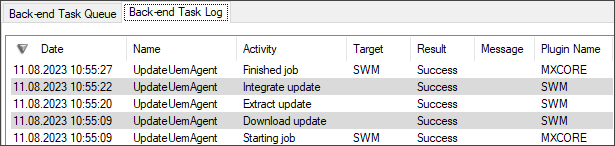
- After the "UEM-Agent Standard-Feature-Release Package" has been integrated, the "Package" must be imported and can then be assigned.